

The data security and productivity in the contemporary workplaces should be seen as going hand in hand. But systems disrupt day-to-day activities and soon cause frustration. One such interruption appears in the form of the message “your organization’s data cannot be pasted here.” It is experienced by many professionals during the copying of information between the Microsoft office applications. The message appears quite straightforward but it normally causes delays and misunderstandings.
When you are writing reports, financial sheets, client emails, and have this notification all of a sudden you might think that something goes wrong. As a matter of fact, the system is operating as intended. This article outlines the meaning of the error, its manifestation, and the way to correct it with ensuring security compliance. Once you know what caused the problem, then you are able to resolve the problem without jeopardizing the data policies of your organization.
What is “your organization’s data cannot be pasted here”?
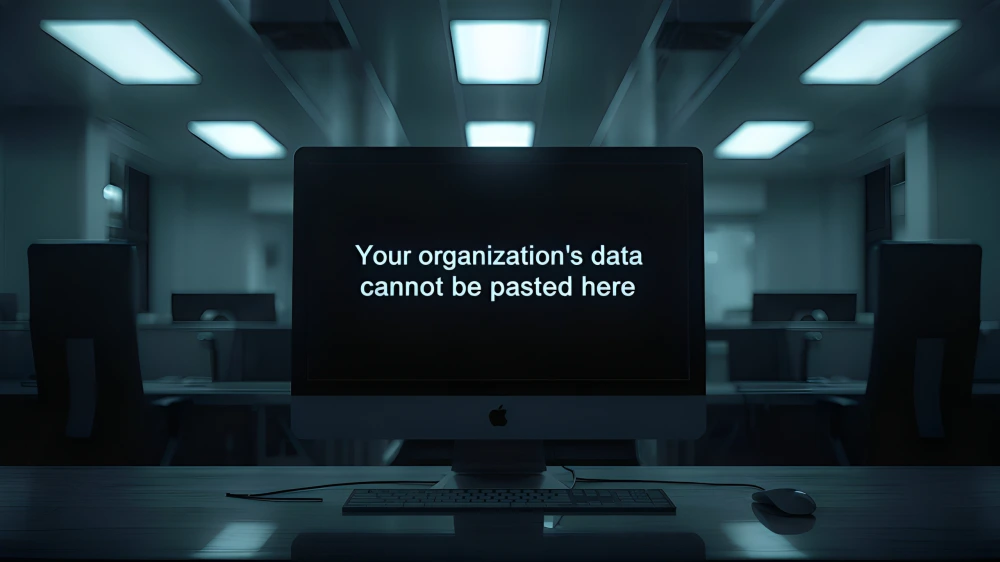
When you see the message “your organization’s data cannot be pasted here”, it indicates that your system is restricting the transfer of protected information between applications. This limitation tends to be used in a corporate setting where Microsoft Office applications are controlled by security tools. The message is not a crash or virus of the system. Rather it is a regulated data protection control that is undertaken by the organization. As an example, by copying some content in Microsoft word and trying to paste it into one of the personal email programs, you might find that it is blocked by the system.
Such protection is necessary since organizations should avoid the unwanted and unintended distribution of confidential information. Consequently, the message acts as a caution that there are regulations in data transfer that are being implemented. The interpretation of this intent can be used to minimize frustration and explain that there is a policy behind the problem and not a technical failure.
Why “your organization’s data cannot be pasted here” Appears in Microsoft Office
The message commonly appears within Microsoft Office applications such as Word, Excel, Outlook, and Teams. It often surfaces when users attempt to move content between managed and unmanaged applications. Therefore, the system checks whether both applications meet organizational security standards before allowing the paste action.
In many workplaces, Microsoft Intune manages device and application policies. If the paste destination is not approved under company rules, the action gets blocked. Consequently, employees may encounter this issue even during routine tasks.
Below is a simplified explanation of how protection policies function within corporate systems:
| Protection Element | Function |
| App Protection Policies | Restrict copy-paste between specific apps |
| Data Transfer Controls | Manage where data can be shared |
| Device Compliance Checks | Allow access only on approved devices |
| Managed App Verification | Confirm both apps follow security policies |
Consider a situation where a finance employee copies budget data from Excel and tries to paste it into a personal note-taking application. The system immediately displays “your organization’s data cannot be pasted here.” This response prevents sensitive financial data from leaving the secure environment.
These mechanisms operate automatically in the background. Therefore, users may not always realize that such restrictions are active until the message appears.
Role of Microsoft Intune in “your organization’s data cannot be pasted here”
Microsoft Intune plays a central role in controlling data movement within managed environments. It allows IT administrators to define how data behaves across applications and devices. As a result, when protection policies are strict, paste operations may be limited.
Intune evaluates whether the source and destination applications are authorized. If either app falls outside the approved list, the paste action fails. This process ensures compliance with company data governance standards.
Below is another simplified table showing common Intune configurations:
| Policy Setting | Typical Impact |
| Block Copy-Paste to Personal Apps | Prevents data leakage |
| Allow Copy-Paste Within Managed Apps | Maintains productivity |
| Restrict Clipboard Sharing | Limits external transfer |
| Enforce Conditional Access | Requires secure login environment |
These rules are designed in organizations with great caution. They tend to limit interchange of information among corporate accounts and personal accounts. As a result, the employees can receive the message when they are switching between the work and personal platforms on the same device.
These designs will be to strike a balance between data security and operational efficiency. Thus, there is the limitation to protect information instead of interfering with the workflow.
Common Reasons Behind “your organization’s data cannot be pasted here”
Several technical and administrative factors may cause the message to appear. Understanding each possibility helps identify the correct solution. One frequent cause is outdated Microsoft Office software. Older versions may conflict with updated security configurations. As a result, the system may interpret the paste attempt as non-compliant. Another common cause involves strict data transfer settings defined within Intune policies. If administrators restrict paste actions outside specific apps, the system blocks the transfer immediately.
Character limits can also trigger similar behavior. Certain applications restrict how much content can be pasted at once. For example, limits may allow only 50, 100, or 250 characters. If the pasted text exceeds this threshold, the system may display “your organization’s data cannot be pasted here.” Additionally, unsynced or corrupted documents may not align with updated protection policies. In such cases, the error may occur only within specific files rather than across all applications.
Practical Solutions to Resolve “your organization’s data cannot be pasted here”
Once you understand the cause, resolving the issue becomes straightforward. The first recommended step involves updating Microsoft Office applications. Updated software ensures compatibility with current security policies.
To update Office, open any application such as Word or Excel. Then navigate to File, select Account, and choose Update Options. Finally, click Update Now and restart your device. Many users report that this simple action resolves the issue immediately.
If the problem persists, IT administrators should review Intune App Protection Policies. Administrators can access the Intune dashboard and examine Data Transfer settings. Adjustments may allow copy-paste between approved managed apps without compromising security.
Creating a new file may also help. Sometimes older documents contain metadata conflicts with updated policies. Opening a fresh document can eliminate file-specific restrictions.
Furthermore, ensure that both source and destination applications are logged in under the same corporate account. Switching between work and personal accounts often triggers the restriction.
Real-World Workplace Example of the Error
In early 2026, a financial consulting firm experienced repeated reports of “your organization’s data cannot be pasted here.” Employees attempted to share spreadsheet summaries through external messaging platforms. The IT department reviewed their Intune configuration and adjusted policies to allow sharing only within Microsoft Teams. As a result, internal collaboration improved while external sharing remained restricted.
Productivity increased because employees understood the boundaries. This example highlights how policy refinement, rather than removal, resolves workflow disruptions effectively. Security settings should not block essential work. However, they must protect confidential data consistently. Clear communication between IT departments and employees ensures balanced configuration.
Preventing Future Occurrences of “your organization’s data cannot be pasted here”
Proactive maintenance reduces interruptions. Follow these best practices to minimize recurring issues:
- Keep Office applications updated monthly.
- Avoid mixing personal and professional accounts.
- Use company-approved communication tools.
- Consult IT before installing third-party productivity apps.
- Understand your organization’s data security policy.
Clear communication between IT departments and employees ensures both productivity and security.
Conclusion
The message “your organization’s data cannot be pasted here” serves as a security safeguard rather than a technical malfunction. Even though it can disrupt the workflow, it will ensure that sensitive data within the organization is not transferred illegally. The problem can be addressed effectively by updating the applications, reviewing the protection settings, and using the managed apps in the proper way.
Security and productivity have to work in tandem in a professional setting. Knowing the reason why you can not paste the data of your organization here is achieved to make sure that you answer in a confident manner and to keep to compliance without wasting time unnecessarily.
Read More Blogs :- Content://com.avast.android.mobilesecurity/temporarynotifications Meaning and Function on Android












Leave a Reply